
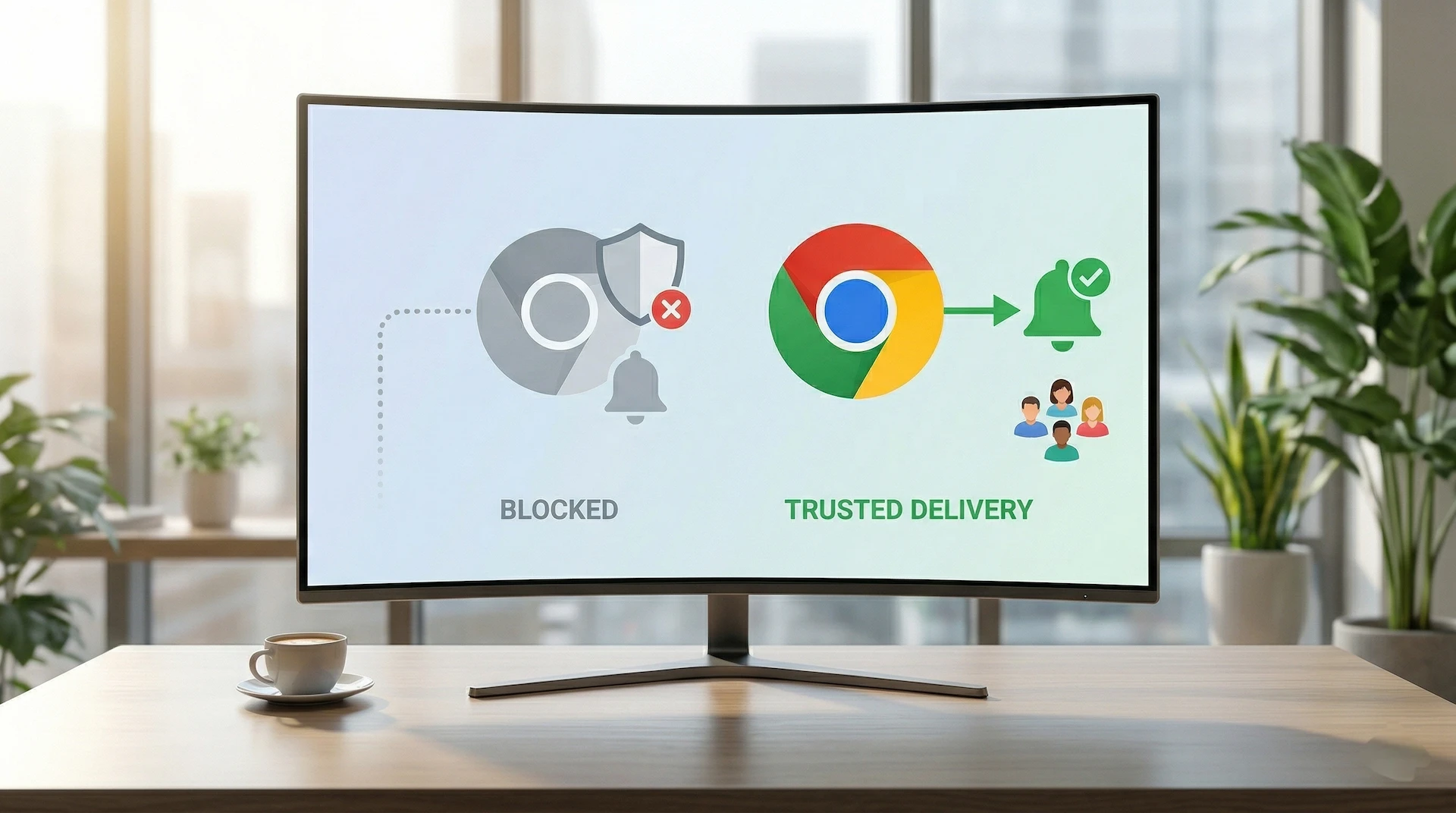
In 2026, Google Chrome has become significantly more protective of the user experience. With the introduction of the “Quieter Permission UI” and new Push API rate limits, websites that bombard users with irrelevant alerts are finding their permissions automatically revoked.
If you are using Trust Push or any other notification service, staying out of the “Spam” category is the difference between a thriving marketing channel and a blocked domain. Here is how to ensure your notifications actually land on your subscribers’ screens.
1. Avoid the “Immediate Prompt” Trap
Chrome’s machine learning now identifies sites with low opt-in rates and high “Block” rates. If you trigger the permission request the millisecond a user lands on your page, you are asking for a block.
- The Strategy: Use a two-step opt-in. Show a “soft” prompt (a custom bell icon or a slide-in bar) first. Only trigger the browser’s native permission request after the user has engaged with your content or clicked your custom button.
- Trust Push Tip: Use our delayed trigger settings to show the prompt after a user has spent 30 seconds on your site or scrolled 50% of the page.
2. Respect the New 2026 Rate Limits
Starting this year, Chrome applies a Push API rate limit to “disruptive” sites. If your site sends excessive notifications relative to the time users spend on your site, Chrome may limit your delivery to 1,000 messages per minute or even mute your alerts entirely.
- The Rule of Thumb: Stick to 3–5 high-value notifications per day.
- The Penalty: If flagged, Chrome may enforce a 1-day, 7-day, or even 14-day rate limit. Staying consistent and helpful is better than a massive, one-time blast that gets you blacklisted.
3. Use “Contextual Relevance” to Boost CTR
Chrome tracks how many people actually click your notifications. Low click-through rates (CTR) are a signal to the browser that your content is spam.
- Don’t Blast Everyone: Instead of sending a “New Post” alert to your entire list, segment your audience. If you have a tech blog, send coding updates to your “Developers” segment and gadget news to your “Tech Enthusiasts.” With Trust Push, you can categorise your audience into 5 parts for maximum engagement.
- Personalization: Use the subscriber’s name or interests in the title. Personalization in 2026 isn’t just a “nice to have”—it’s a deliverability requirement.
4. Monitor Your “Site Engagement Score”
Chrome uses a hidden metric called the Site Engagement Score. If a user hasn’t visited your website in weeks but you are still sending them daily notifications, Chrome may automatically revoke your permission under its “Safety Check” feature.
- The Solution: Periodically prune inactive subscribers or send a “re-engagement” notification that encourages them to visit the site. Keeping your list “warm” ensures Chrome sees your notifications as wanted.
Currently, you can only see your engagement score for a website using chrome://site-engagement. For now, there’s no official way to check global engagement score for a website.
5. Avoid “Sensationalist” or Phishing Language
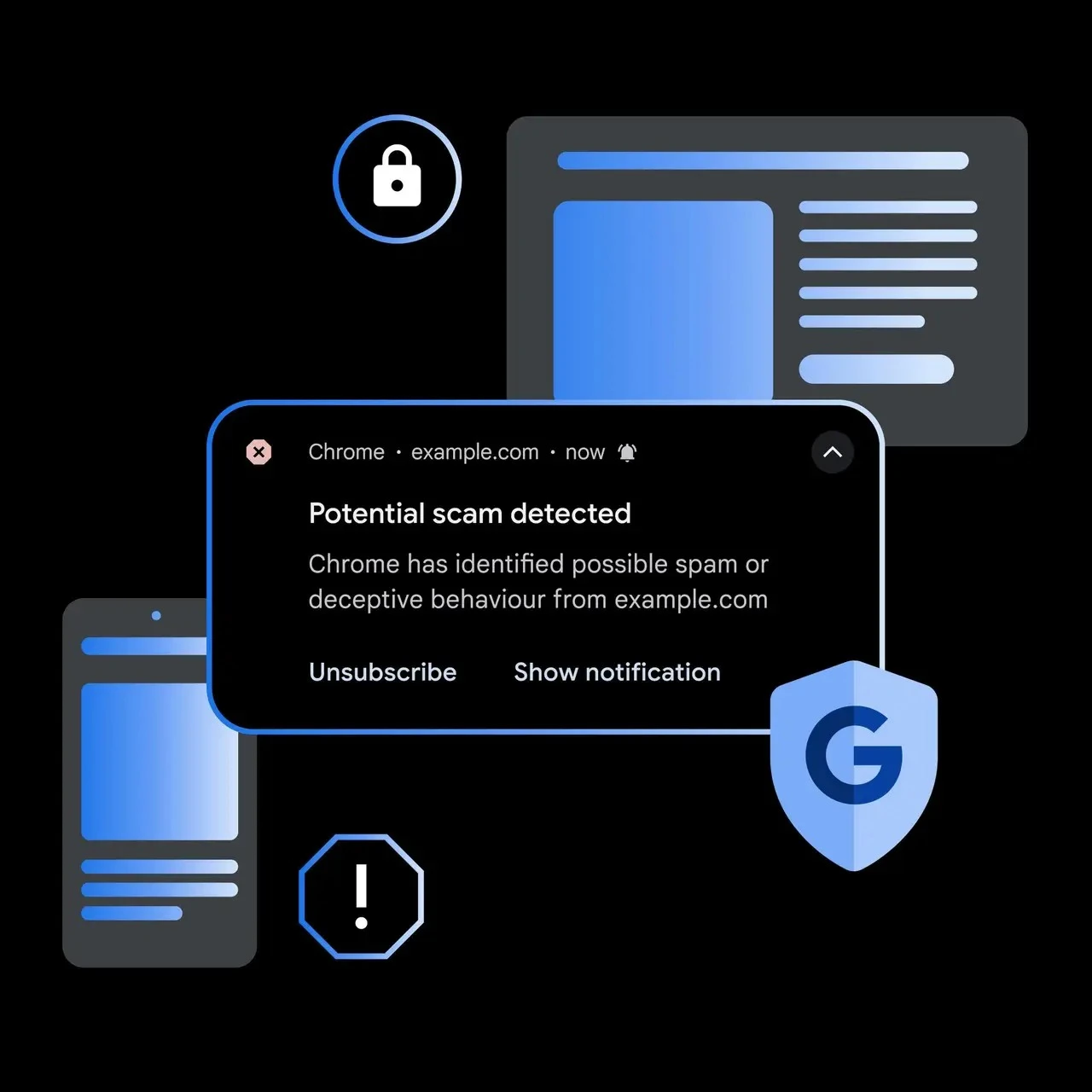
Chrome’s on-device AI now scans notification text for patterns typical of scams or clickbait. Phrases like “You won!”, “Urgent: Account Locked”, “Virus Found” or excessive use of capital letters and emojis can trigger a silent filter.
- The Fix: Keep your copy professional, clear, and action-oriented. Use deep links to take users directly to the relevant page rather than a generic homepage.
Chrome mostly use title, body, launch URL, and the action button labels from your push notification to determine the probability of spam. So, keep them clean and legit.
6. Guide Users to “Always Allow” and “Not Spam”
If your notifications are already being flagged or hidden by Chrome’s “Possible Spam” overlay, you aren’t completely locked out. Chrome provides a path for users to manually override the filter, which sends a powerful positive signal back to Google’s algorithms.
- The Action: Encourage your most loyal users to click “Show notification” when they see the warning. From there, they should select “Always allow” and, crucially, click “Report as not spam.”
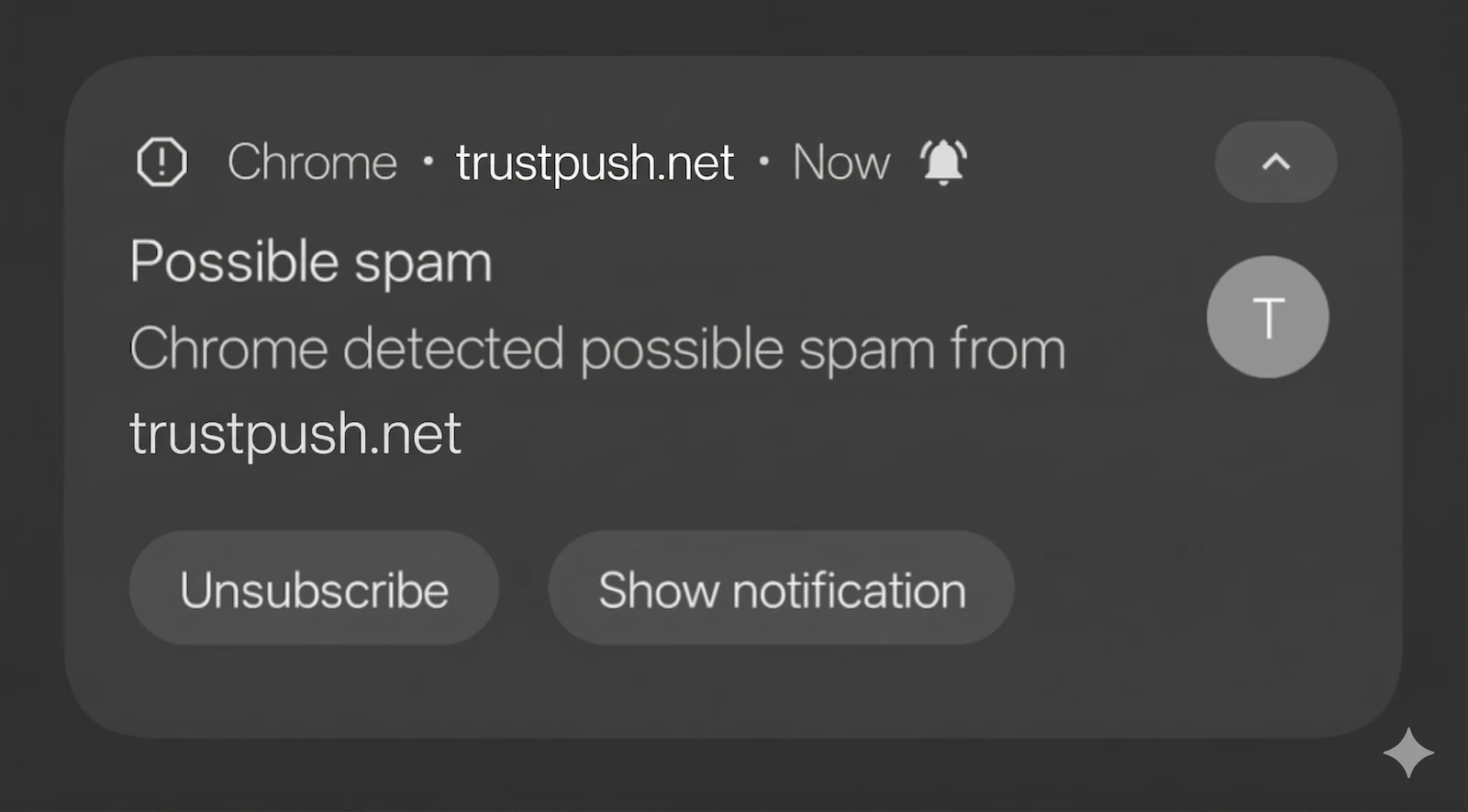
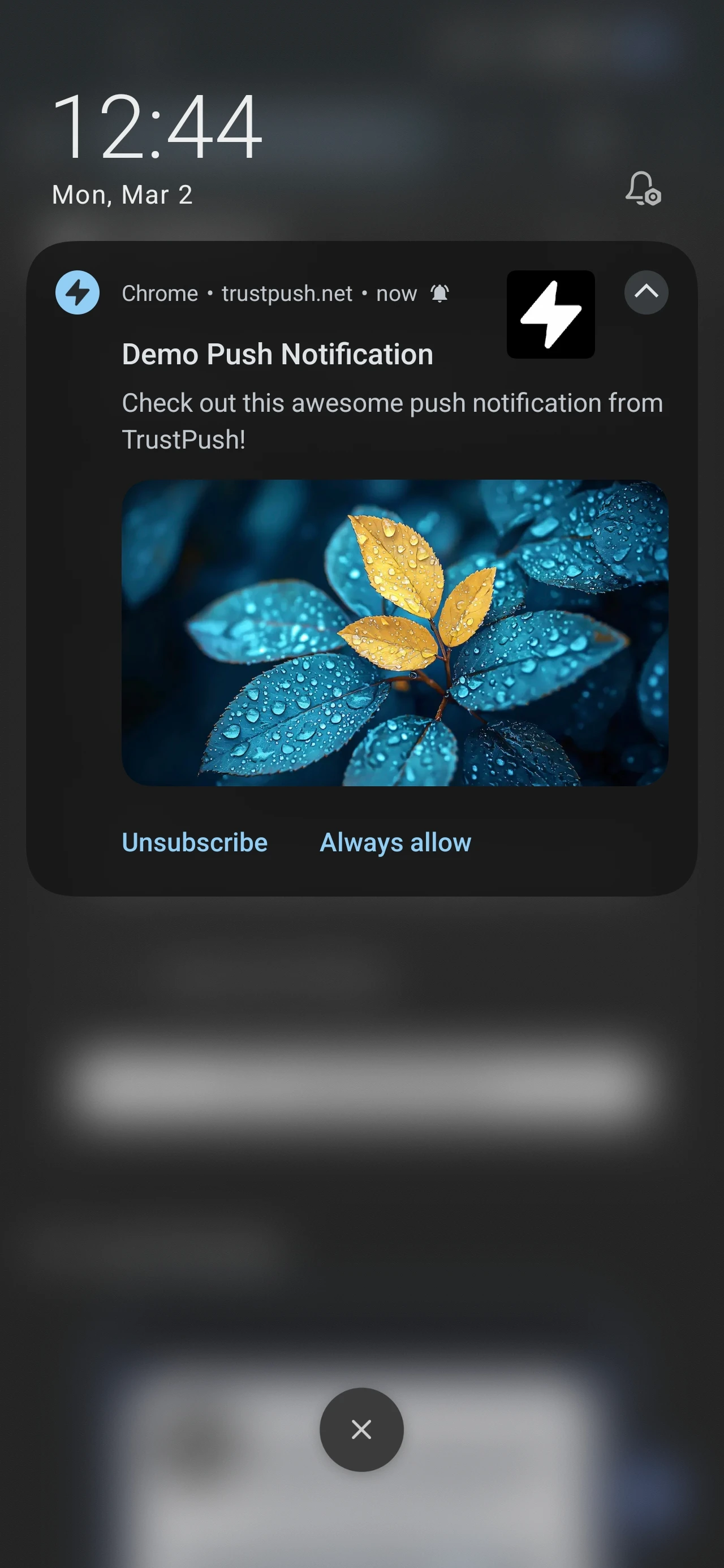
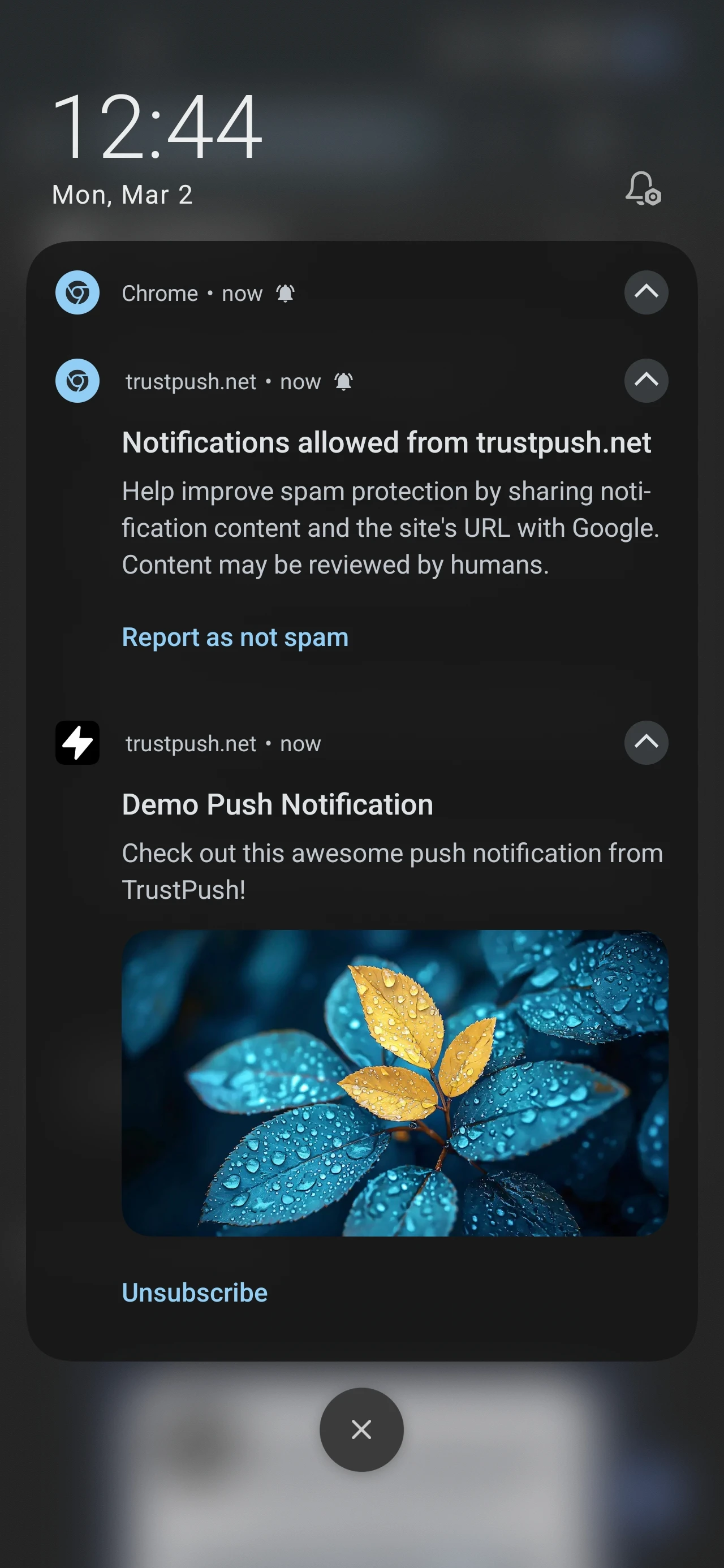
- Why it works: These manual overrides act as a “whitelist” signal. When multiple users perform these actions, it tells Chrome’s AI that your domain is trusted and that the initial spam classification was a “false positive.”
- The Result: Completing even two of these steps significantly reduces the likelihood of your future pushes being throttled or hidden, effectively “rehabing” your domain’s reputation in the eyes of the browser.
Why Trust Push is Built for This
Unlike legacy providers that encourage “batch and blast” methods to increase their subscriber counts, Trust Push is built for the modern web:
- Clean Delivery: We maintain high-reputation delivery endpoints to ensure your messages aren’t flagged at the server level.
- Predictable Pricing: Because we don’t charge per subscriber, you can focus on quality over quantity without feeling like you need to “get your money’s worth” by over-sending.
- Easy Segmentation: Our dashboard makes it simple to divide your audience with different categories so you only send what’s relevant.
Ready to send notifications that actually get seen?